How to Add a New Map Search Page to Your Website
Last updated: June 10, 2026
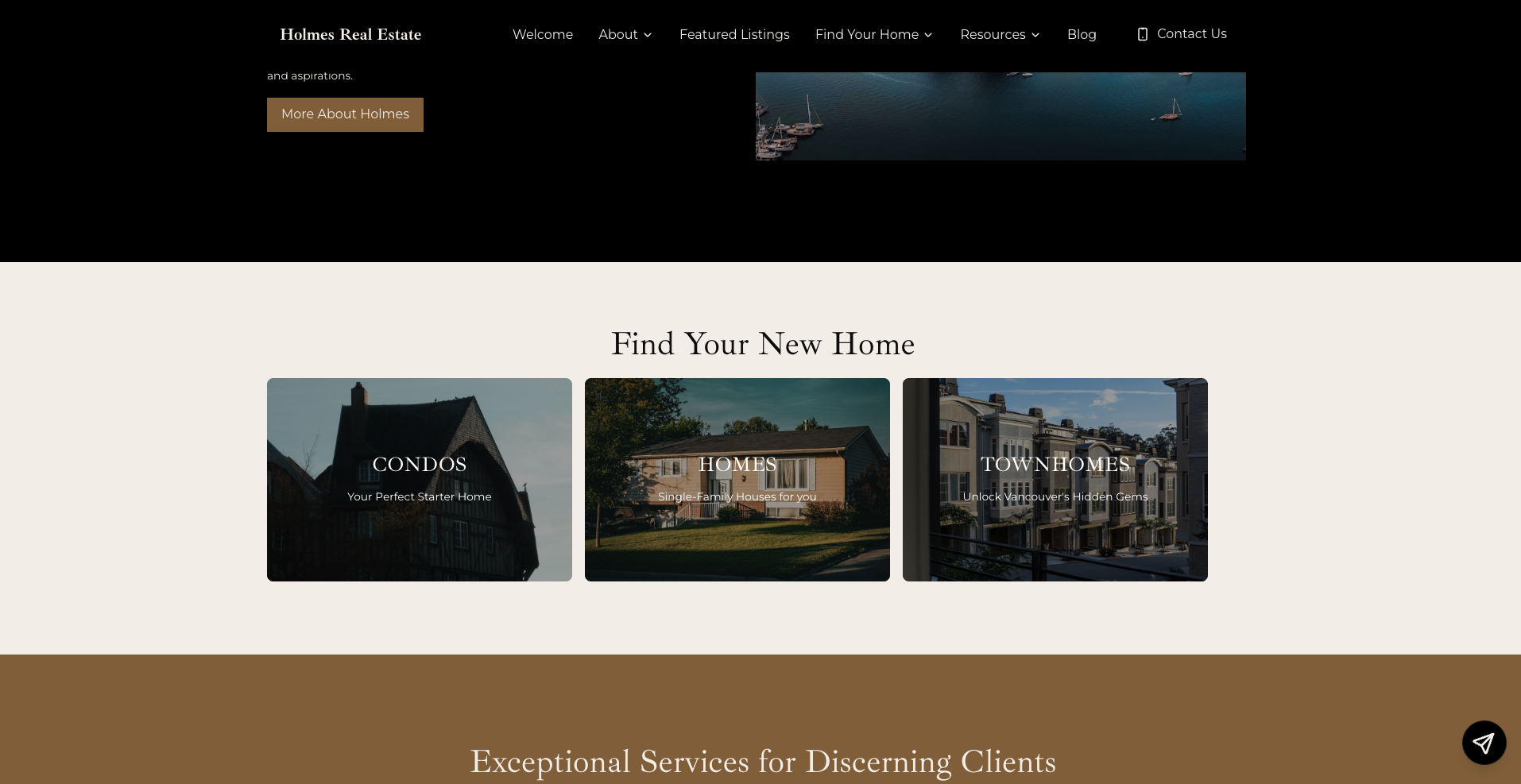
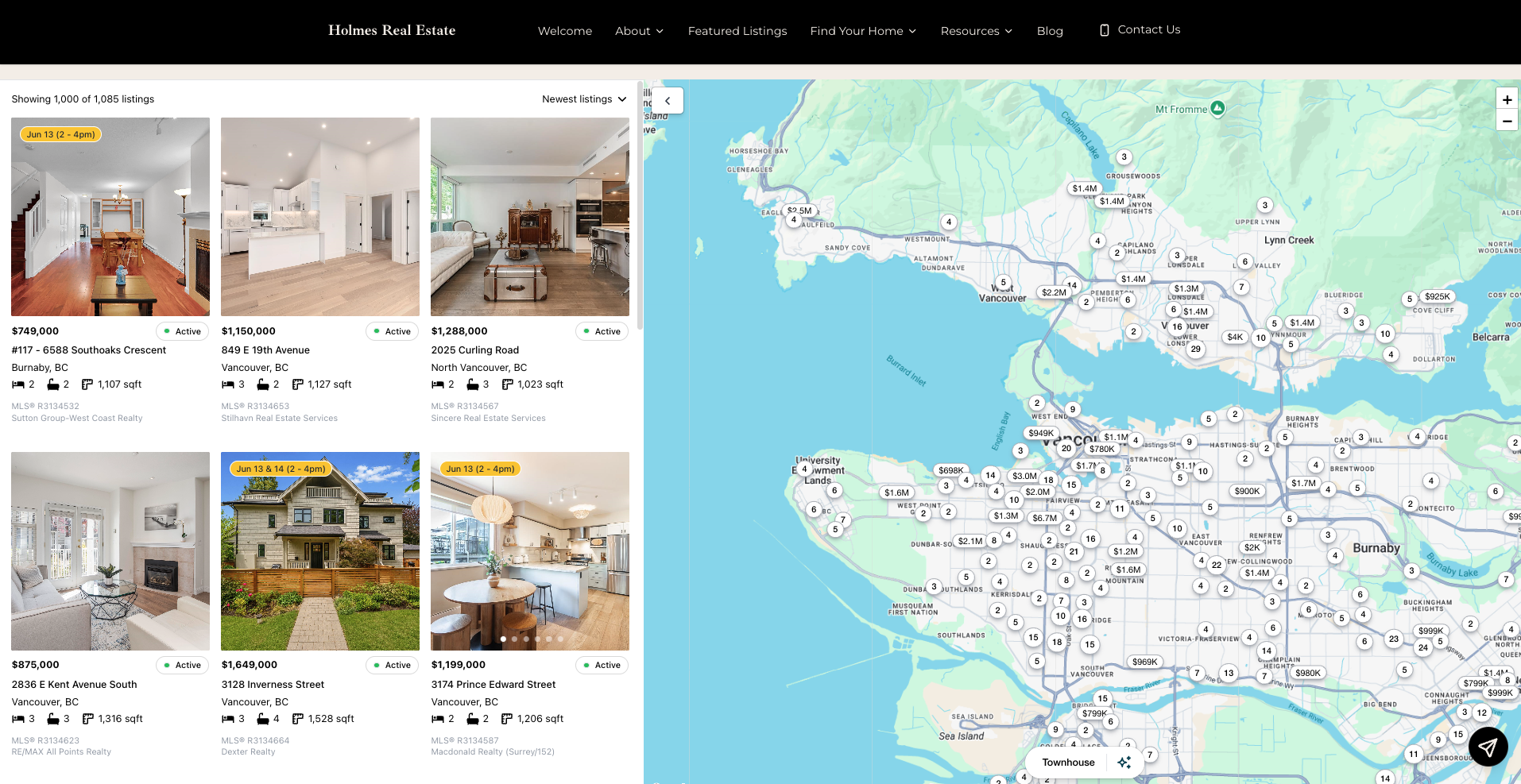
In this tutorial, you will learn to create a Map Search page for your Starter site and link it in a Homepage section. Check out the examples under!
Step 1 — Open the Pages panel
Log in to your Avenue dashboard and open your website in the builder. In the top-left corner, click Settings, then look for the Pages panel that slides in from the left. This is where every page on your site lives.
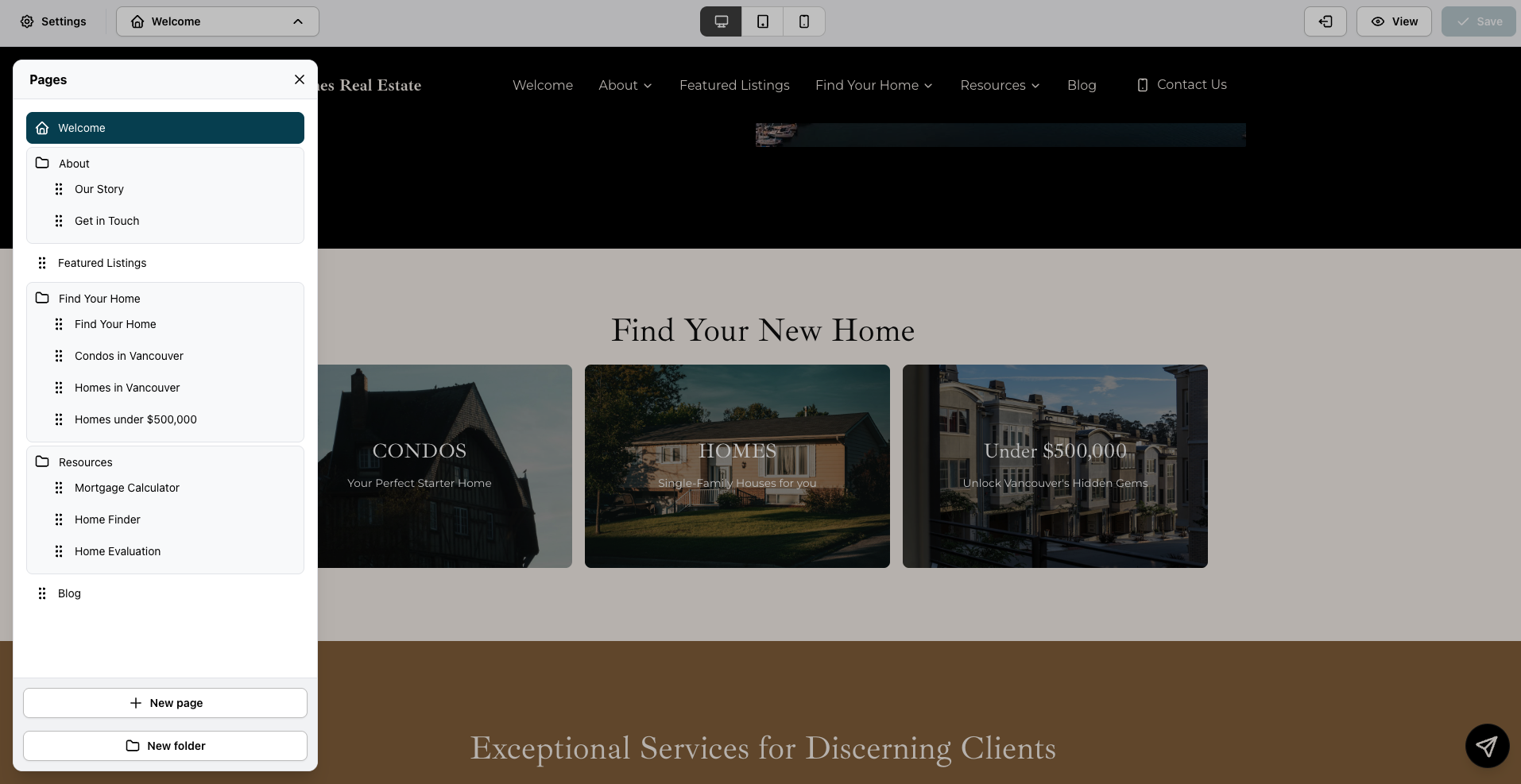
The Pages panel gives you a full view of your site structure — folders, sub-pages, and all.
You'll see your existing pages listed here — things like Welcome, About, Find Your Home, and so on. Some pages are grouped inside folders (like Resources). New pages can be added at the top level or nested inside a folder.
When you're ready to add a page, click + New page at the bottom of the panel.
Step 2 — Choose a page type and name your page
Clicking + New page opens the New page dialog. This is where you'll pick your page type and give it a title before it gets added to your site.
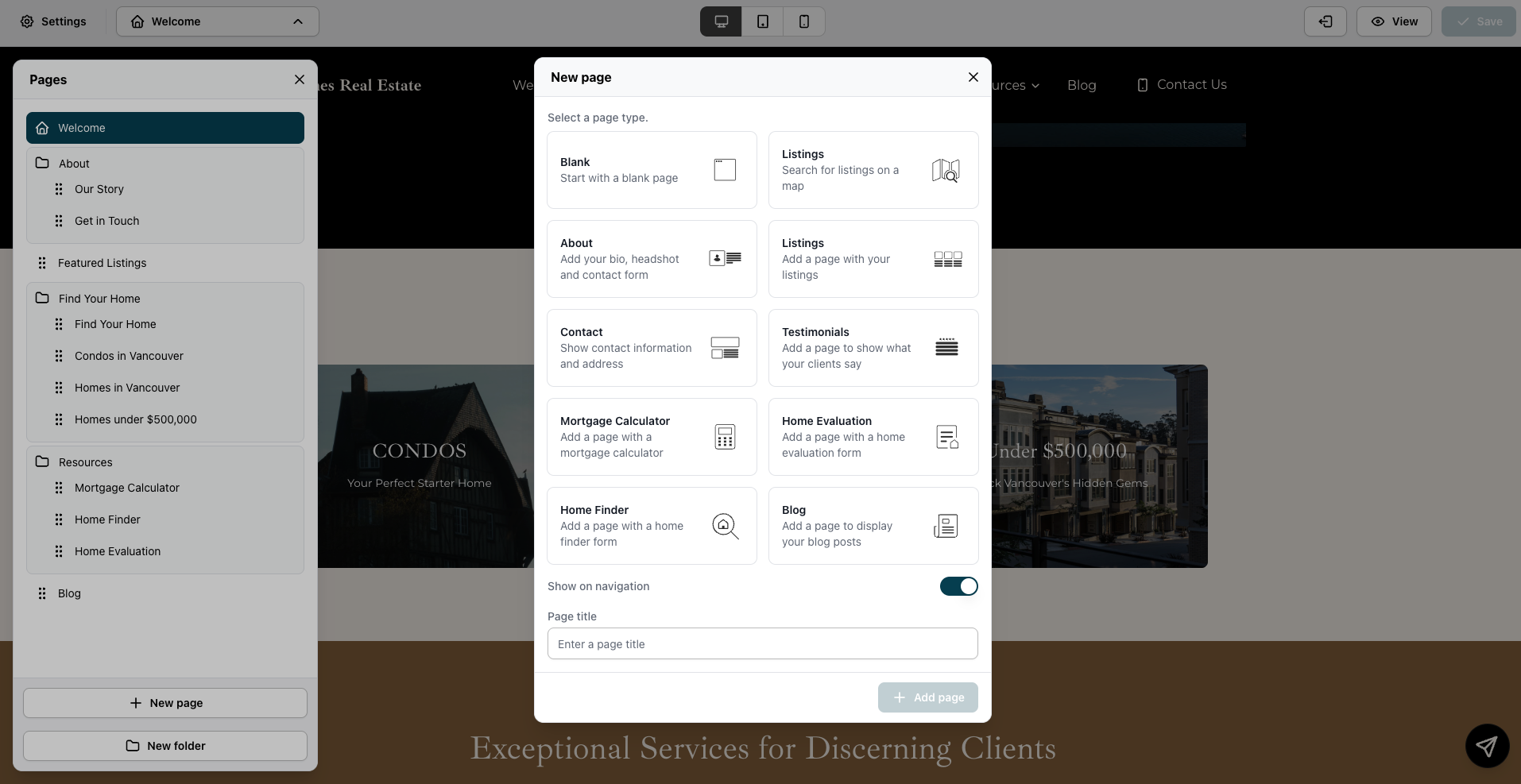
The New page dialog — eight page templates to choose from.
For a property-type search page (condos, townhomes, detached homes, etc.), the Listings — Search for listings on a map type is the best choice. Select it so it's highlighted.
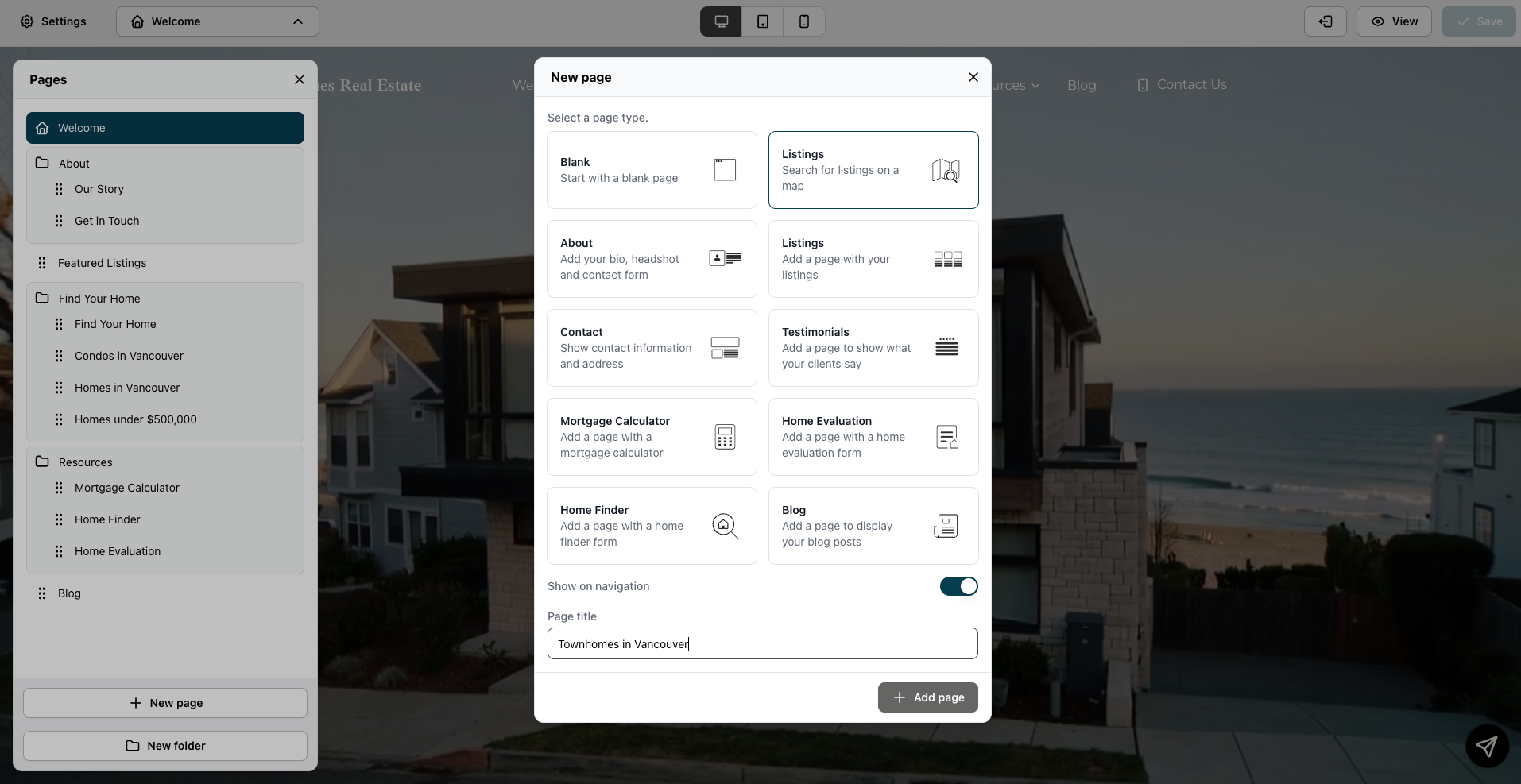
Select the Listings (map) type — it highlights in teal when active.
Name your page
Below the page type grid, you'll find the Page title field. Type in a clear, descriptive name — in this example, the page is titled Townhomes in Vancouver. This becomes both the page's navigation label and its URL slug, so keep it readable.
Note: The Show on navigation toggle is on by default. If you'd rather control where this page appears in your nav manually, turn it off here — you can always add it later.
Once you're happy with the name, click + Add page.
Step 3 — Your new page is live in the builder
Avenue creates the page immediately and drops you into it. You'll notice two things right away:
At the top, the builder switches context to your new page — the page name appears in the top bar where Welcome used to be.
On the canvas, the page comes pre-loaded with a hero section (auto-generated headline and intro copy) and a Listing Search section below it with a map. The map is probably showing the wrong area right now — we'll fix that in the next step.
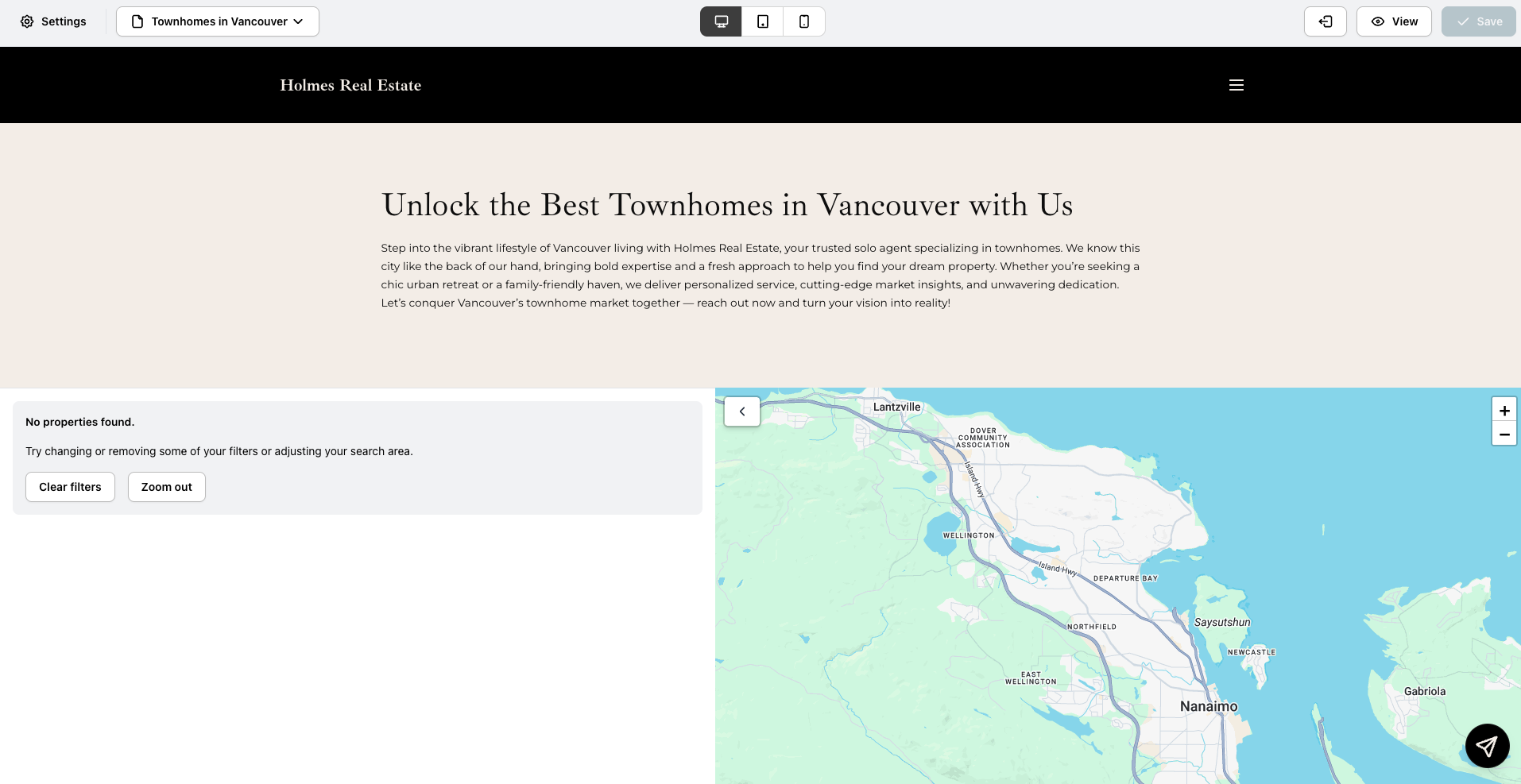
Your new page — hero section on top, Listing Search below. The map location needs adjusting.
Heads up: The auto-generated hero copy uses the voice and tone defined during your onboarding. You can adjust it in your AI Settings.
You can also confirm the page was added by opening the Pages panel — it'll show up at the bottom of your page list.
Step 4 — Configure the Listing Search section
This is the most important step. By default, the Listing Search section has no filters applied — meaning it'll show every property type in a wide area. You need to set the right location and filter it to the property type your page is about.
Open the section editor
Hover over the Listing Search section on the canvas. A small toolbar will appear in the top-right corner of the section. Click Edit.
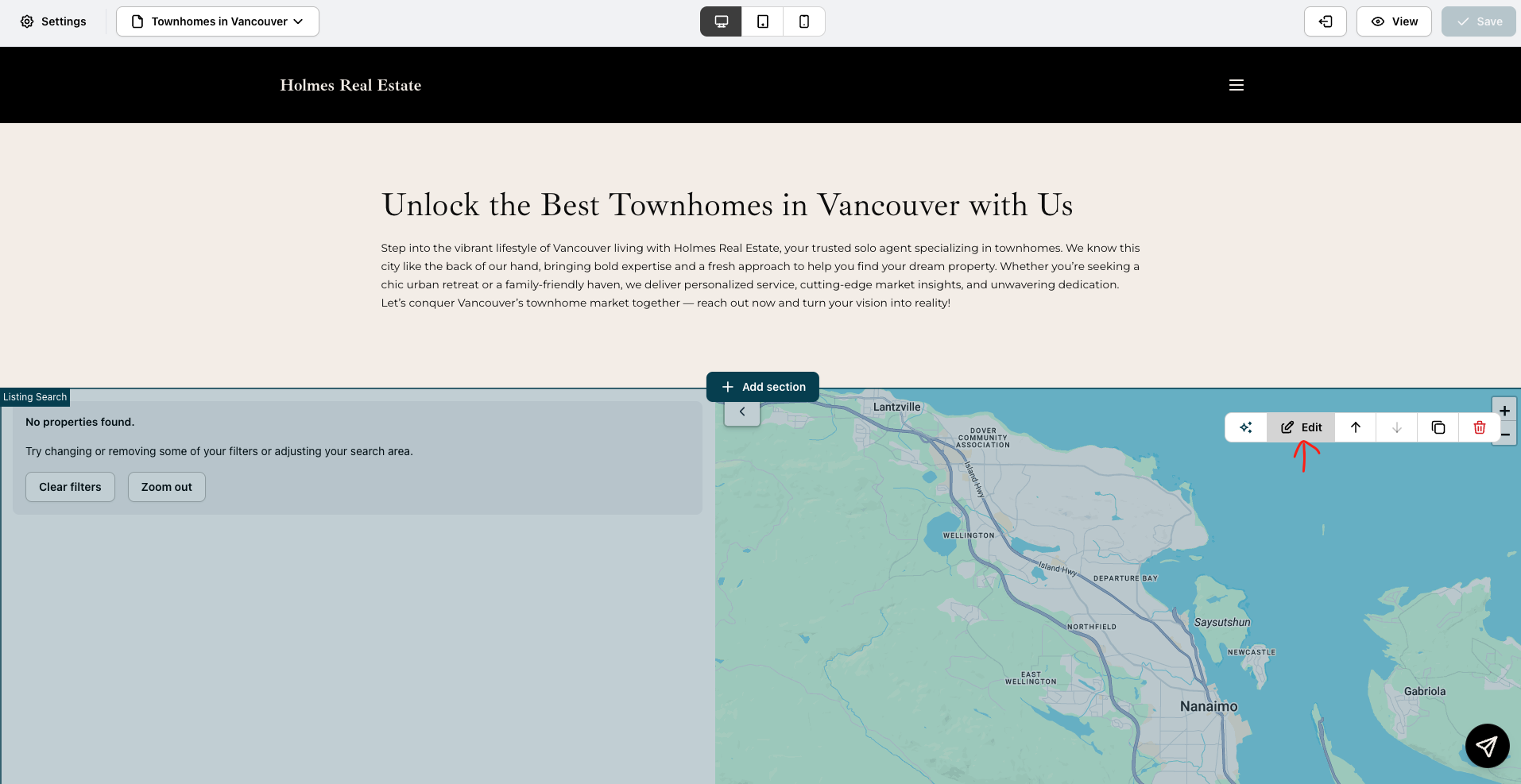
Hover the section to reveal the toolbar, then click Edit.
This opens the Listing Search panel on the right side. You'll see two tabs: Content and Design. Stay on the Content tab.
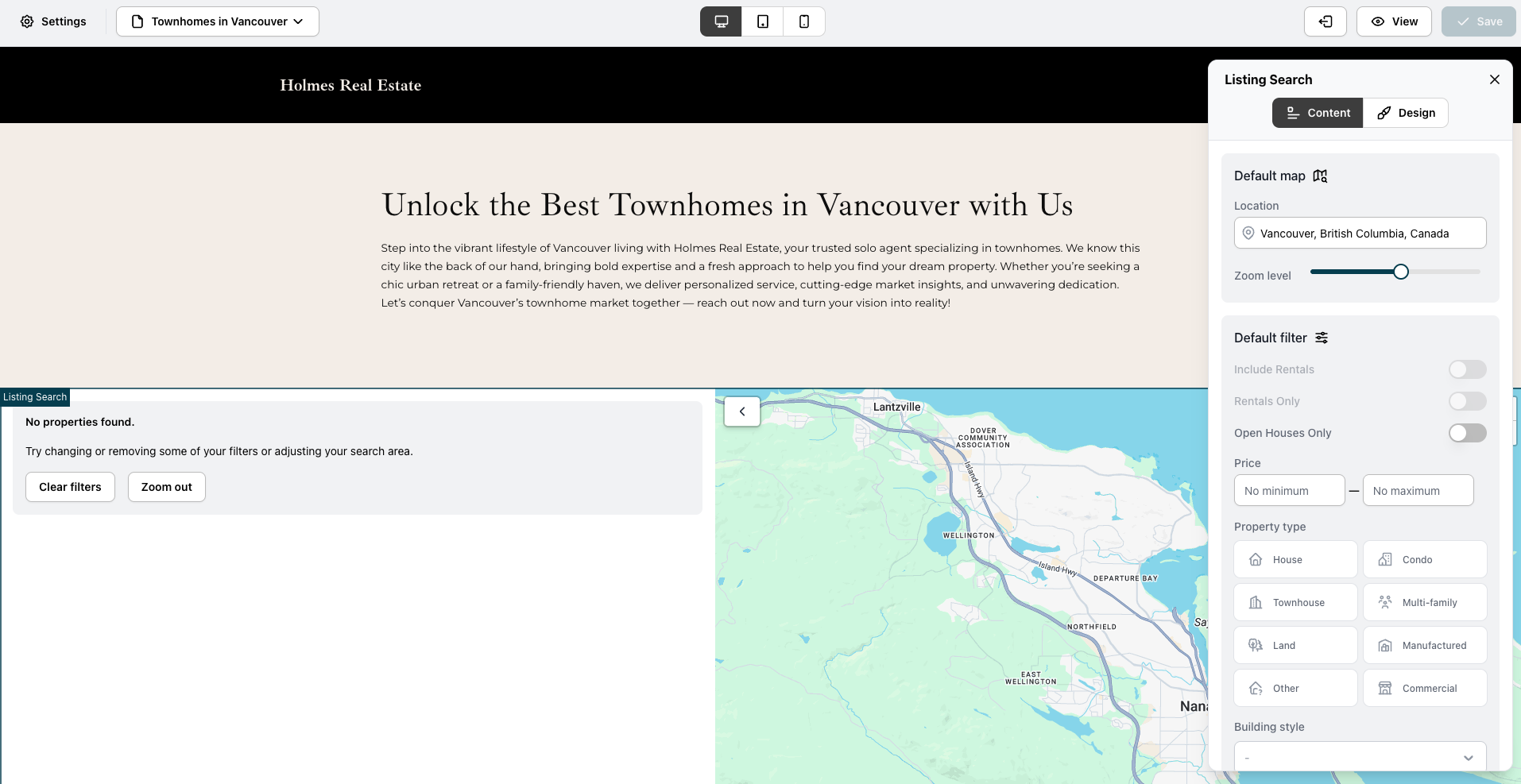
This is where you configure the map location, zoom, and default filters.
Set the map location
Under Default map, find the Location field. Type in the area you want the map to default to — for example, Vancouver, BC, Canada. The map on the canvas will update in real time as you type.
Use the Zoom level slider to set how zoomed-in the map starts. A mid-range zoom works well for city-level searches; tighten it up if you're targeting a specific neighbourhood.
Filter by property type
Scroll down to Default filter → Property type. You'll see all the property type options.
Click the type that matches your page. It'll highlight with a dark border when selected. In this example, since that is townhomes page, Townhouse was selected.
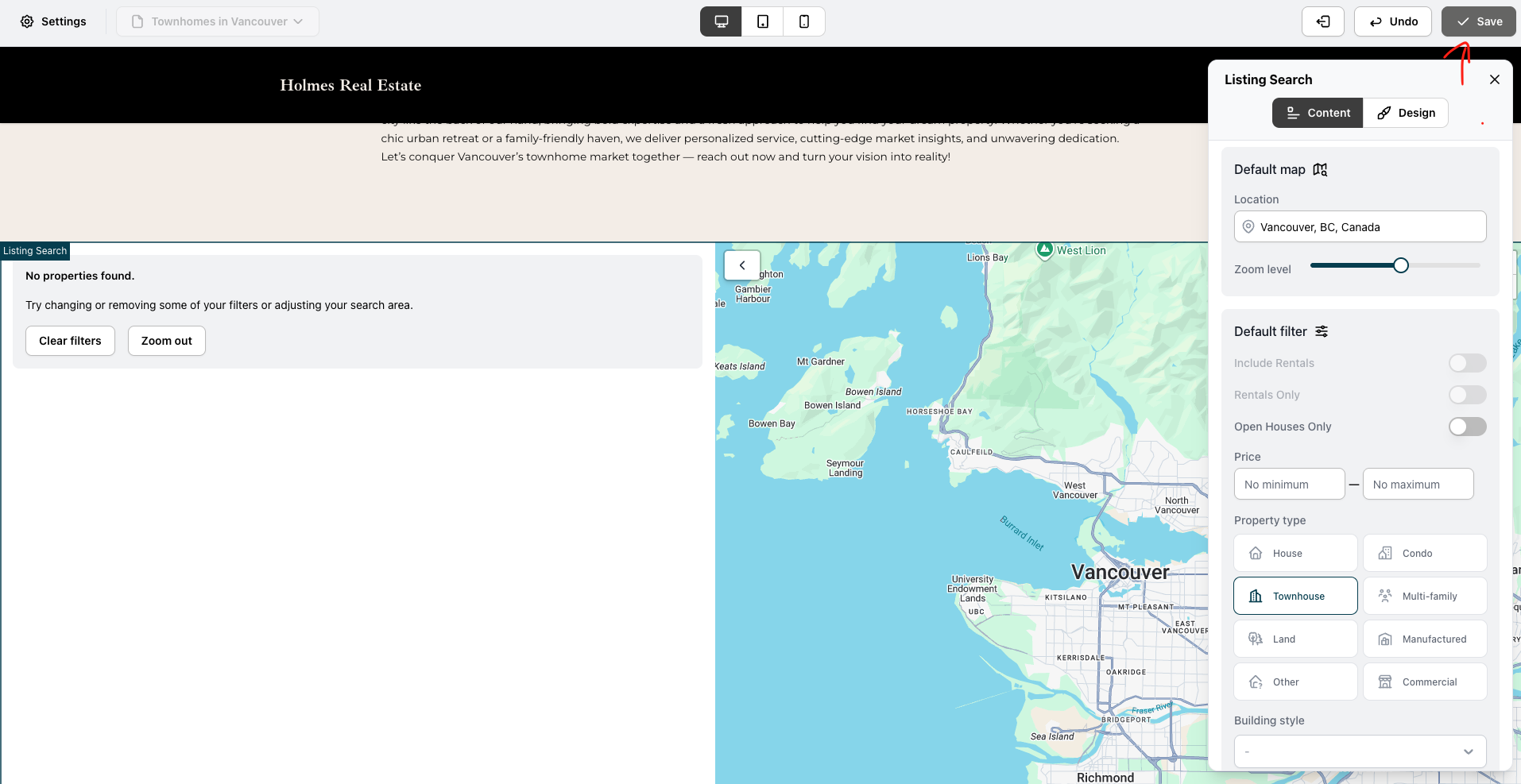
Now that the Location was set to Vancouver and Townhouse selected — the map and results update automatically.
Step 5 — Preview and save
Once you're happy with the location and filter settings, close the settings panel. Your canvas should now show real listings populating the grid alongside the correctly zoomed map.
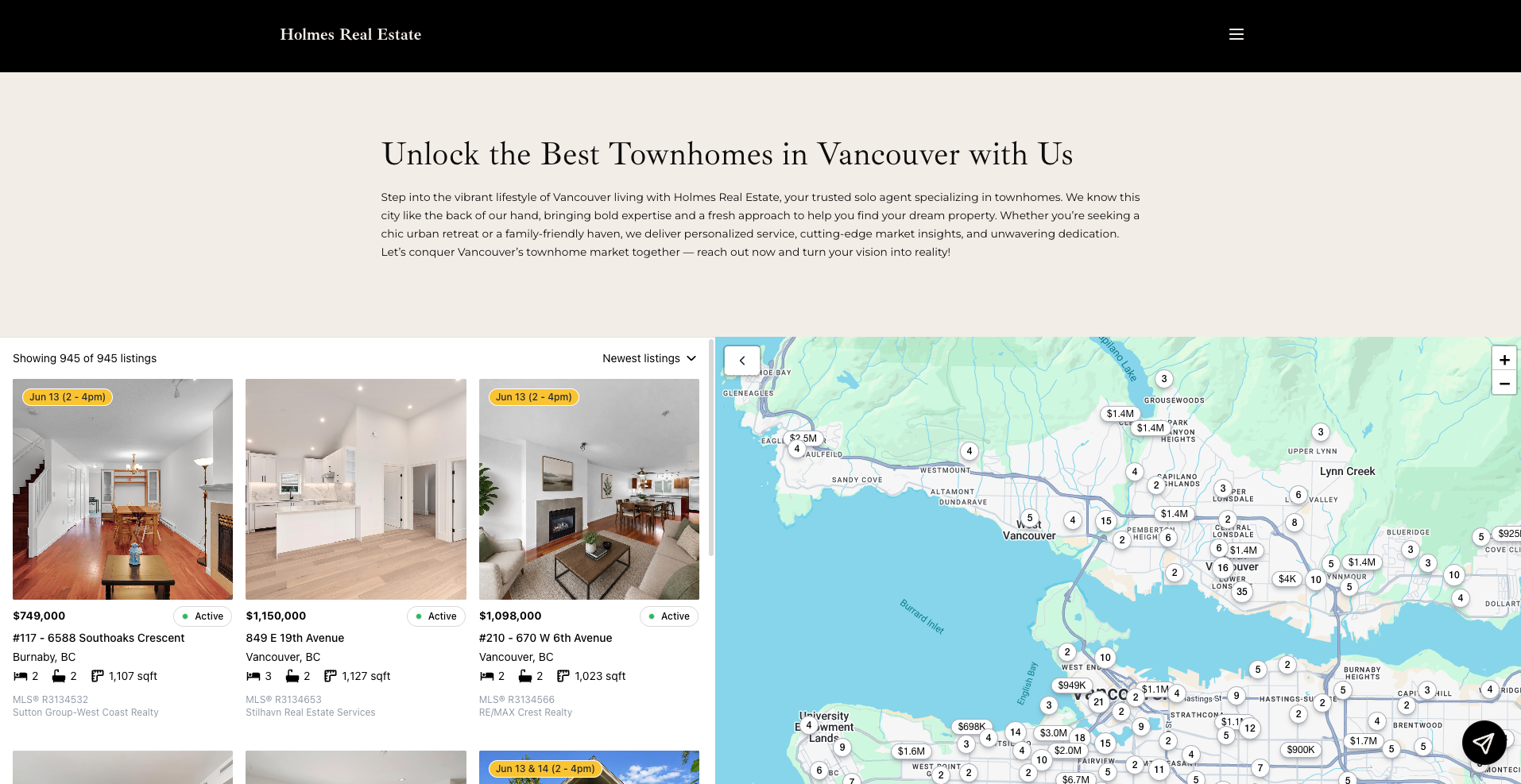
Hit Save in the top-right corner to lock in your changes. You'll see a "Page updated successfully" confirmation when it goes through.
Tip: Click View next to Save to open a live preview of the page in a new tab. This is the cleanest way to check how the page looks and behaves for a visitor before you promote it anywhere.
Step 6: Add the page to your navigation
If you turned off Show on navigation when creating the page, or if you want to nest it inside an existing nav folder (like Find Your Home), you can do that from the Pages panel. Drag and drop the page into the right position in the list.
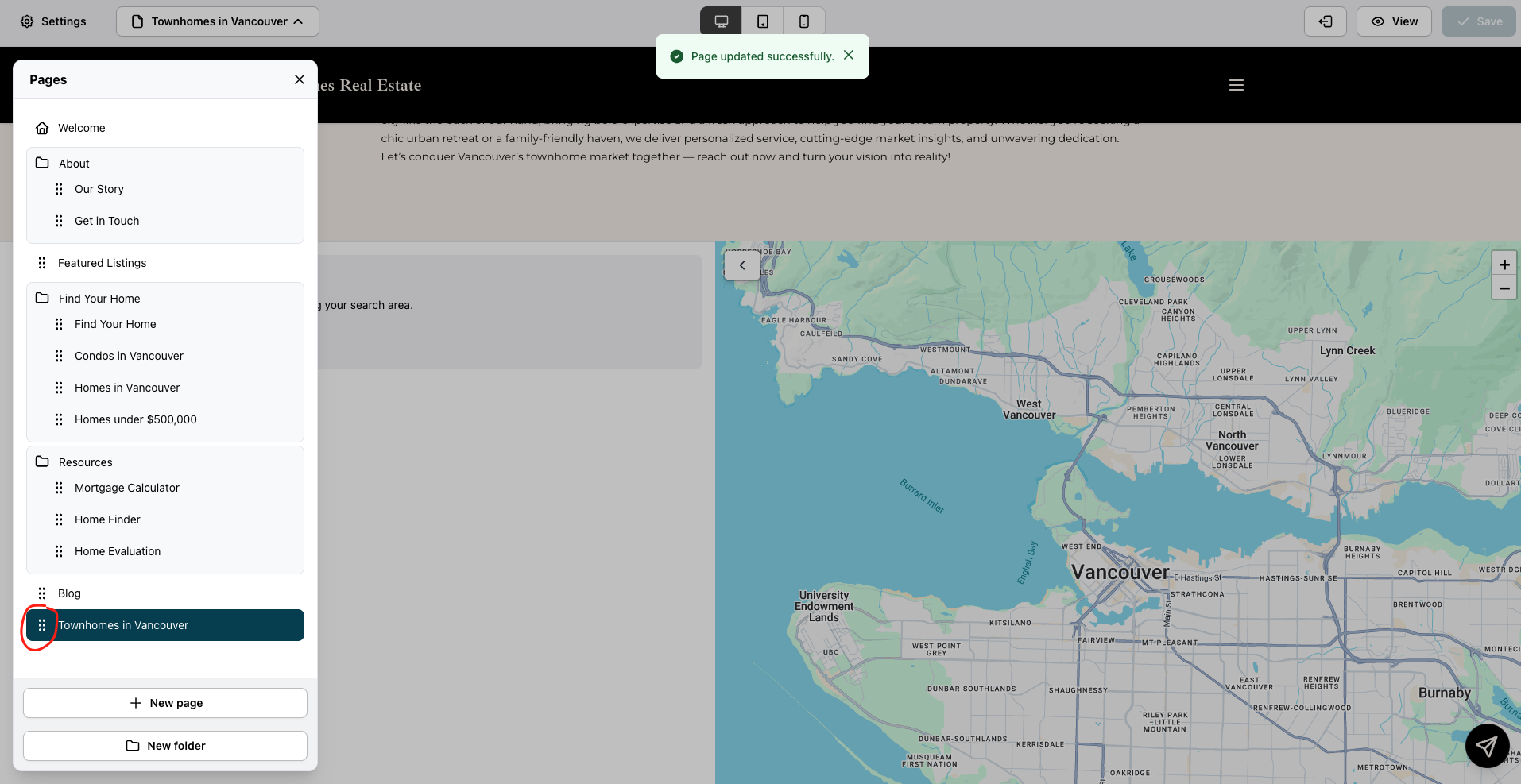
Drag using the six dots besides the Page under menu to reposition it.
Step 7: Link to it from your homepage
The most effective way to surface your new listings page is through a Card List section on your homepage — a grid of image cards, each linking to a different property-type search. If your homepage doesn't have one yet, here's how to add and configure it.
Add a Card List section
Navigate back to your Welcome page using the page selector in the top bar. Scroll to the area of your homepage where you'd like the card grid to appear, then click + Add section.
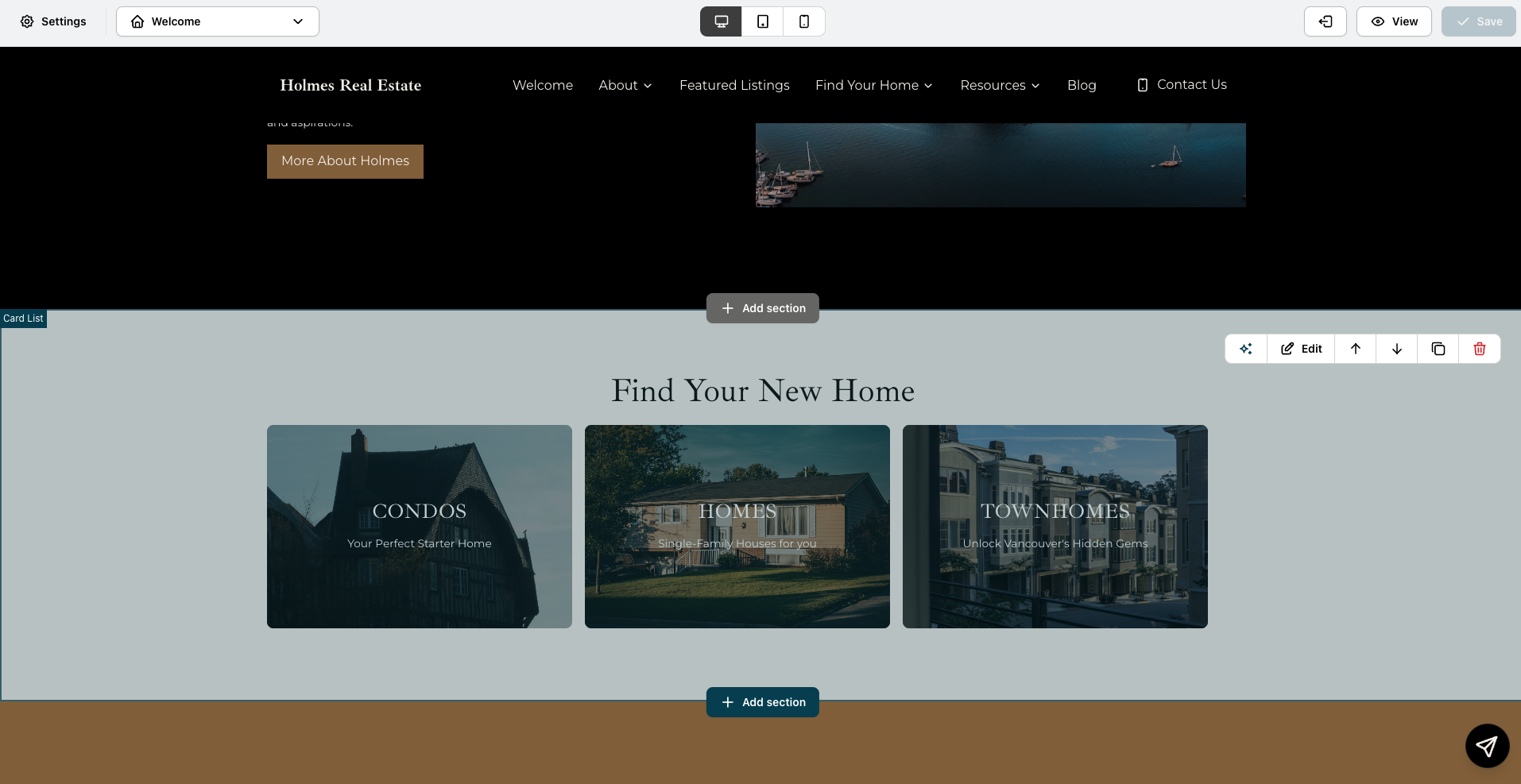
Hover any section to reveal the Add section buttons above and below it.
This opens the Add Section dialog. Scroll down to find Card List if you want to mimic the style on the example. Select it, then click Generate.
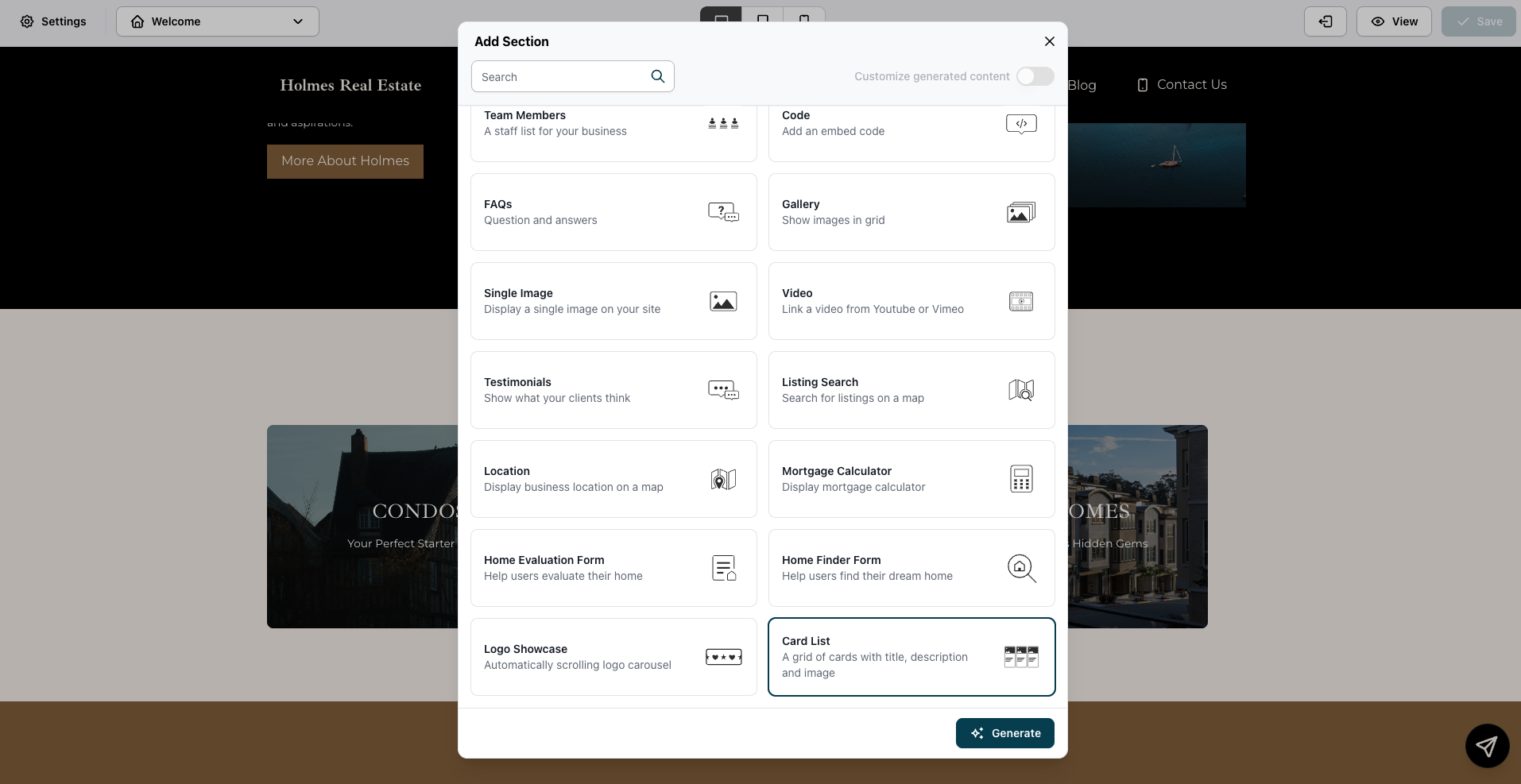
Select Card List from the section menu, then hit Generate.
Avenue will generate a Card List section with placeholder content and drop it onto the canvas. Don't worry about what the generated copy or images say — those are easily changeable.
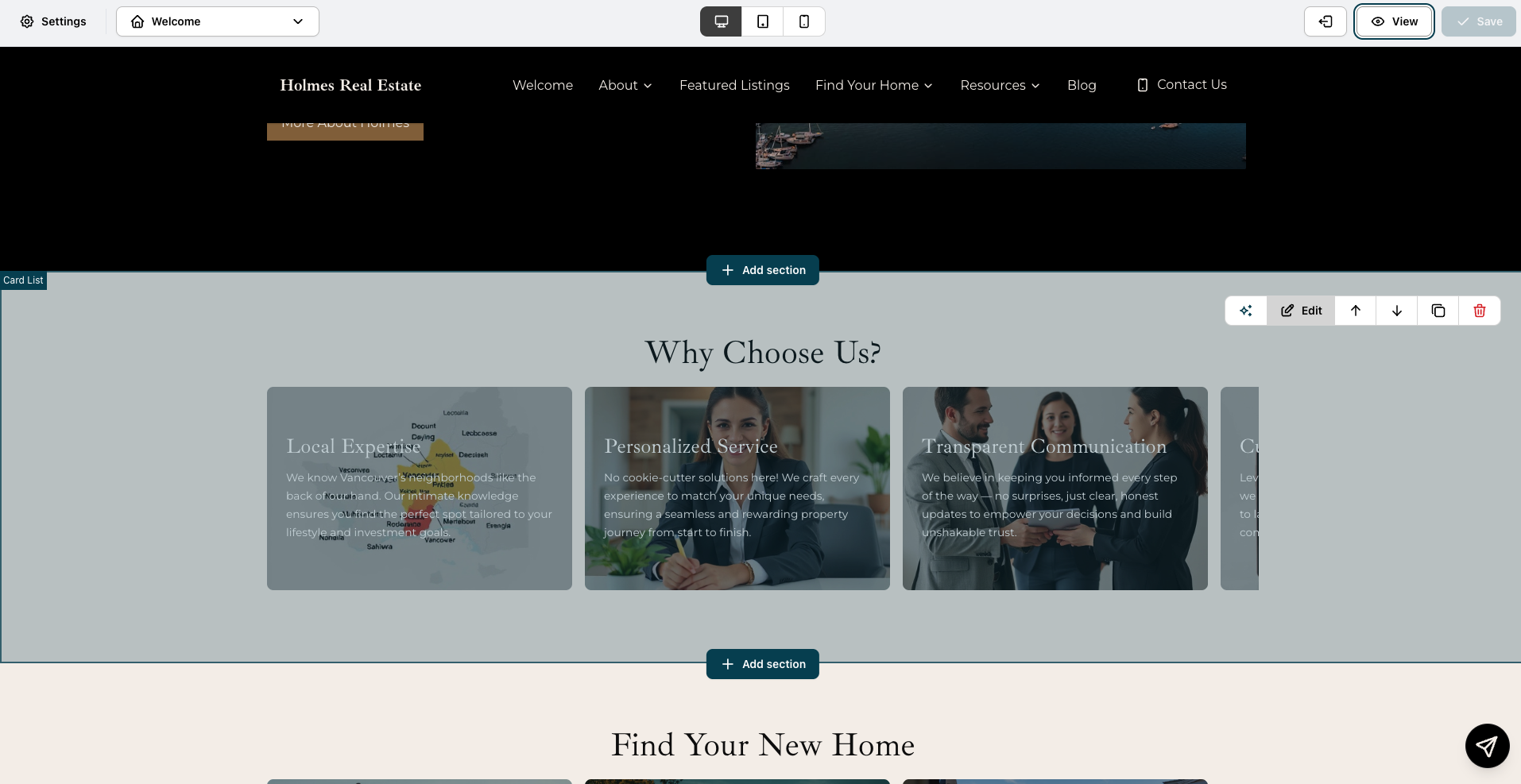
Edit each card
Hover the Card List section and click Edit in the toolbar. This opens the section editor. From there, click directly on any individual card to open the Edit card panel on the right.
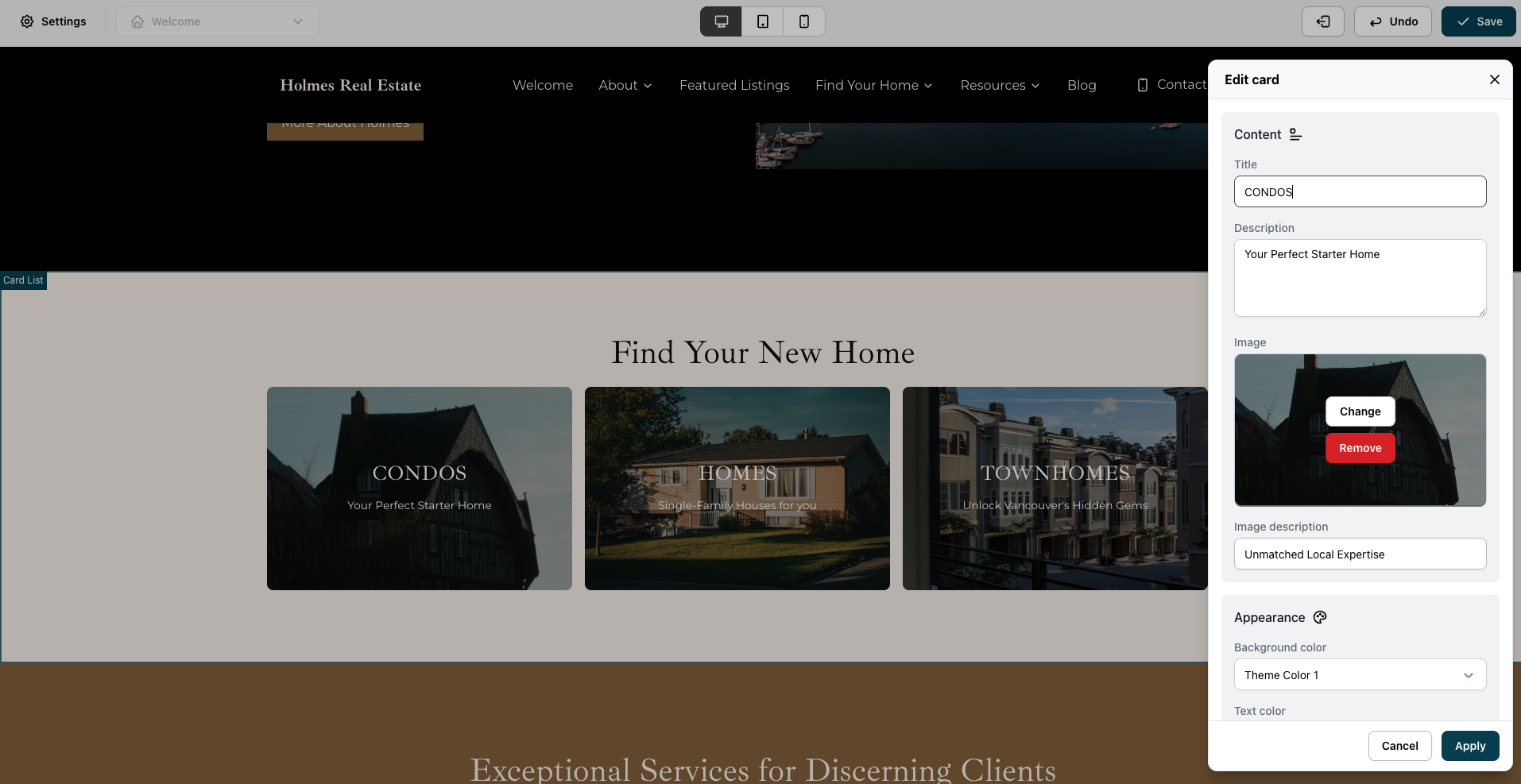
Each card has four editable fields:
Field | What to put here |
|---|---|
Title | The property type label, e.g. CONDOS, HOMES, TOWNHOMES |
Description | A short subtitle, e.g. Your Perfect Starter Home |
Image | A photo representing that property type — click Change to swap it out |
Image description | Alt text for accessibility — a brief description of the photo |
Fill in each card for your property types, swap in relevant photos, and click Apply after each one. Repeat for every card in the section.
Tip: Link the cards directly to its corresponding listings page. Look for the Link field in the Edit card panel and paste in the URL of your new page, or select it from your site's internal pages.
Once all your cards are updated, hit Save. Your homepage now has a property-type grid that sends visitors straight to the right listings page.
The finished card section on your homepage with each card linking to its own listings page.