Adding a Video Header
Last updated: July 10, 2026
Give your homepage banner more motion by replacing its background image with a video. This article walks through turning on video backgrounds for your Banner section.
Select your Banner section
From your site editor, go to the page with the banner you want to update (for example, Welcome), then click into the Banner section at the top of the page.
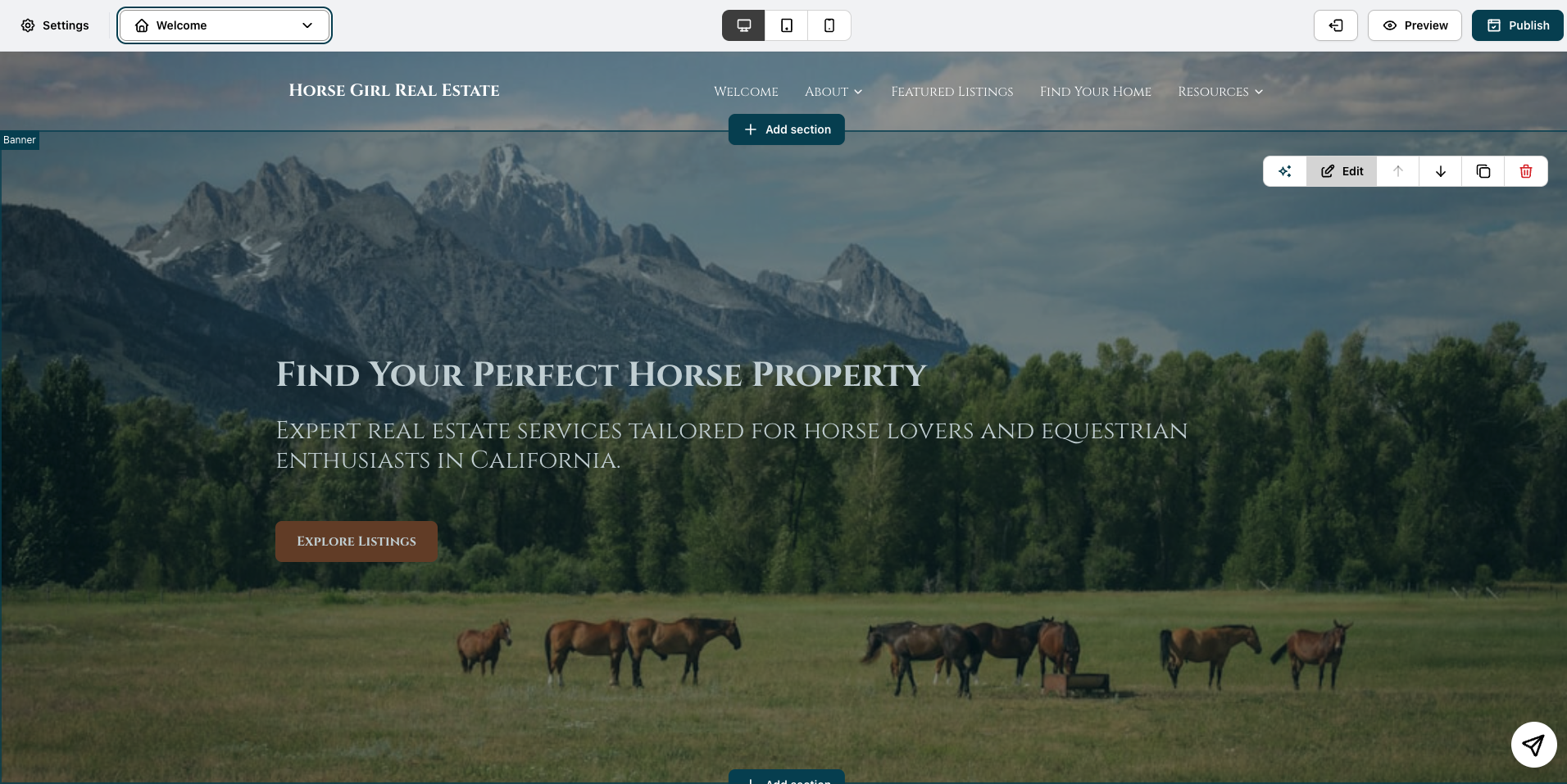
A toolbar will appear above the section with options including Edit, reorder arrows, duplicate, and delete.
Click Edit to open the Banner settings panel.
Open Background media settings
After clicking Edit, switch to the Design tab in the panel that opens on the right. Under Background media, make sure the toggle is turned on.
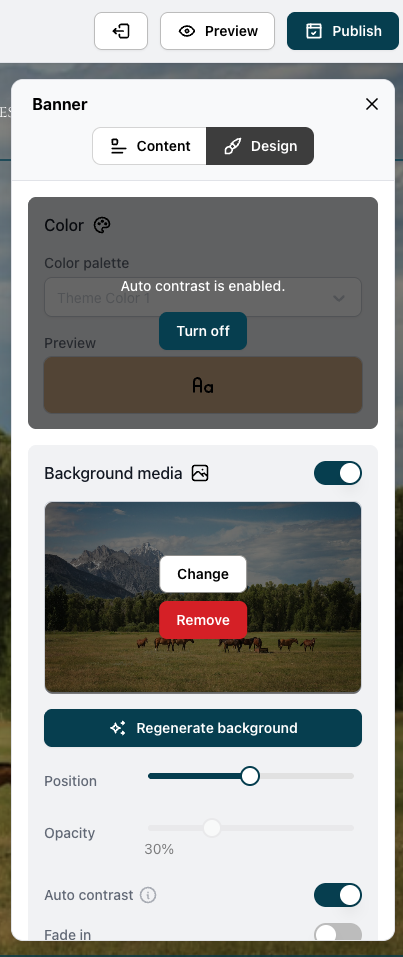
Click Upload or select from media storage (or Change, if you already have an image set) to open the Media storage dialog.
Add your video
In the Media storage dialog, click the Video tab. You'll see a field asking for a video source URL.
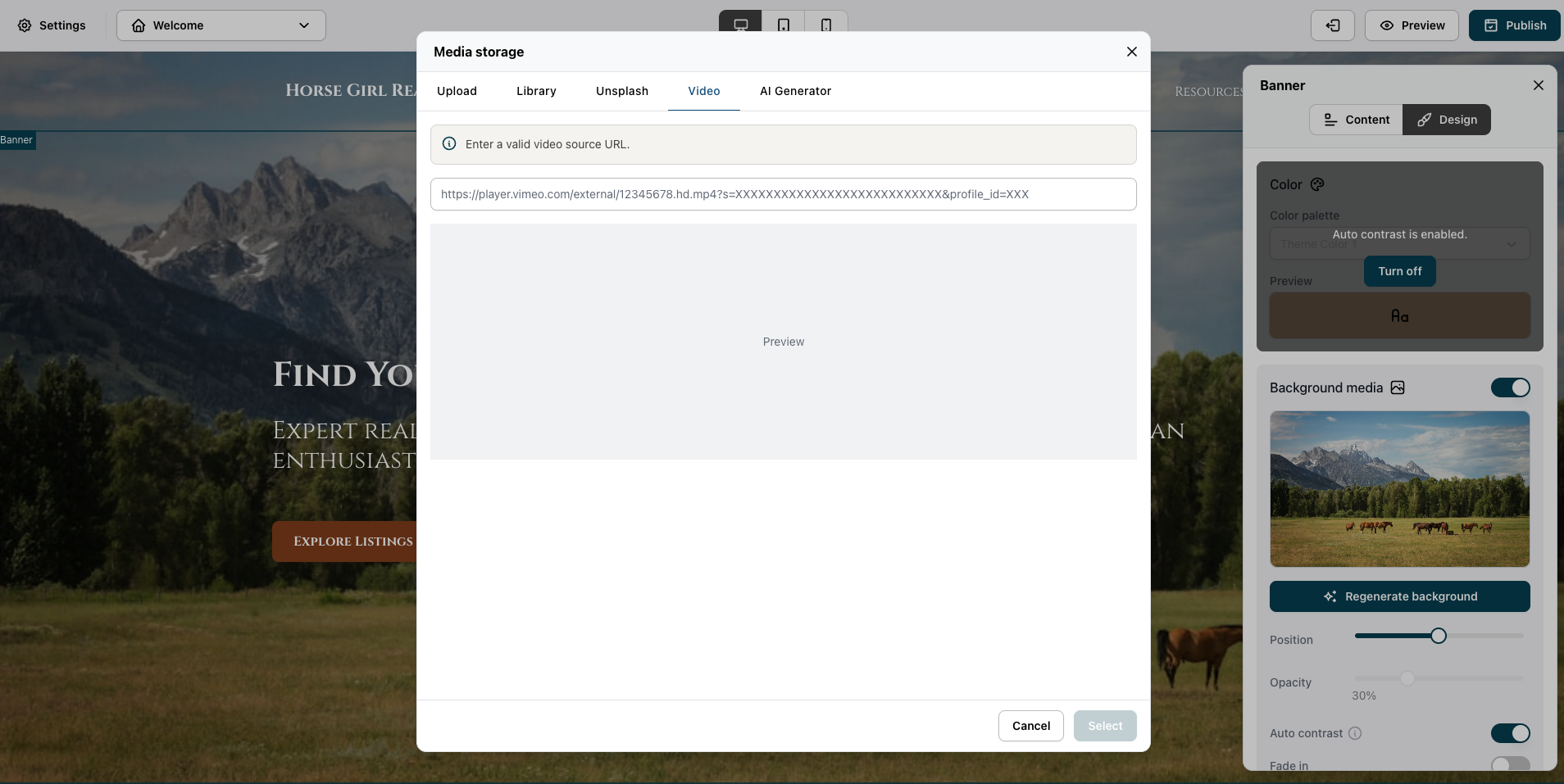
This field needs the direct link to the video file, not the standard link you'd copy from a "Share" button. A direct link points straight to the video file itself rather than to a player page. If your video is hosted on Vimeo, see How to access my video's direct links for steps — note that this requires a Vimeo Standard plan or higher.
Once you paste a valid direct link, a preview will load automatically and the Select button will become active.
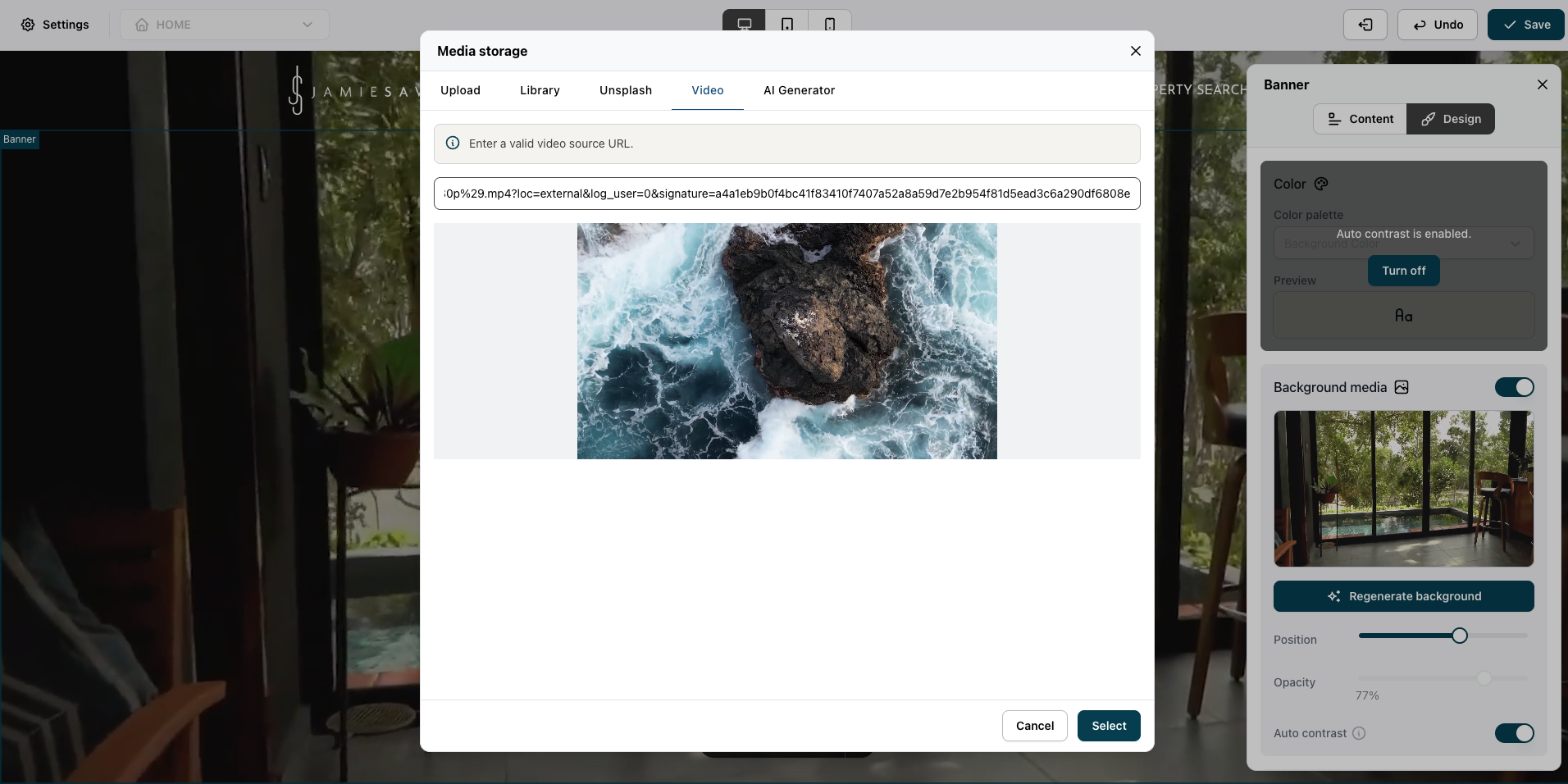
Click Select to apply the video as your banner's background.
What happens after you select a video
Your banner will now play the video on a loop behind your headline, subtext, and button. You can still adjust Position, Opacity, and Auto contrast the same way you would for an image background, so your text stays readable over the moving footage.
A final reminder: If the URL you paste isn't a direct link to the video file, the preview won't load and Select will stay disabled.