Adding a Sold Listings Page
Last updated: June 30, 2026
A Sold Listings page lets you showcase your closed deals on your site, separate from your active inventory. This article walks through creating one and setting it up to display only sold properties.
Open the Pages panel
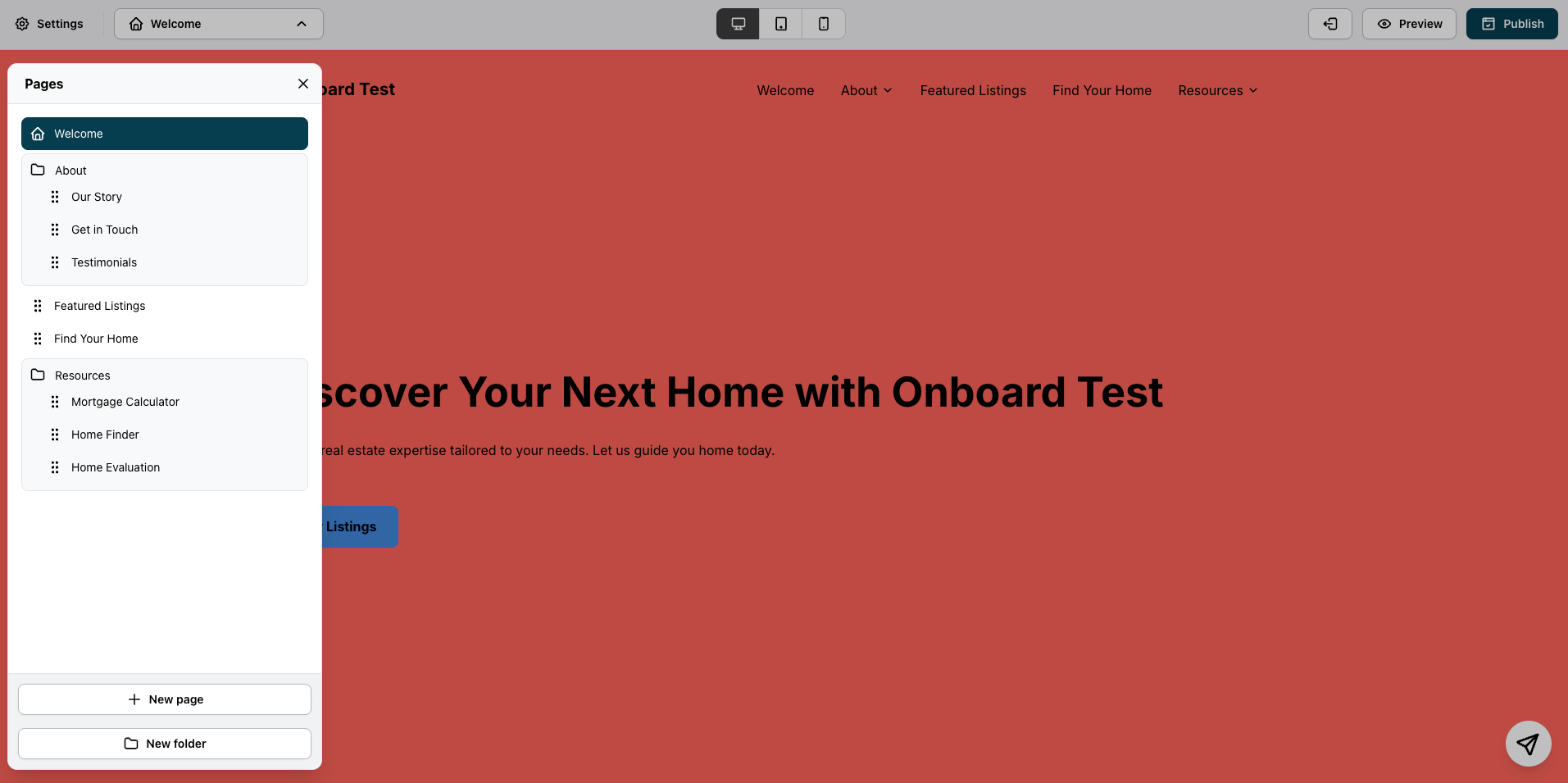
From your website builder, click the page selector at the top (it shows your current page name, like Welcome) to open the Pages panel. This panel lists every page on your site, organized by section.
Create a new Listings page
Click + New page at the bottom of the panel. A dialog will open asking you to select a page type.
Select the Listings option labeled "Add a page with your listings" (not the one labeled "Search for listings on a map" — that's a different page type for map-based search).
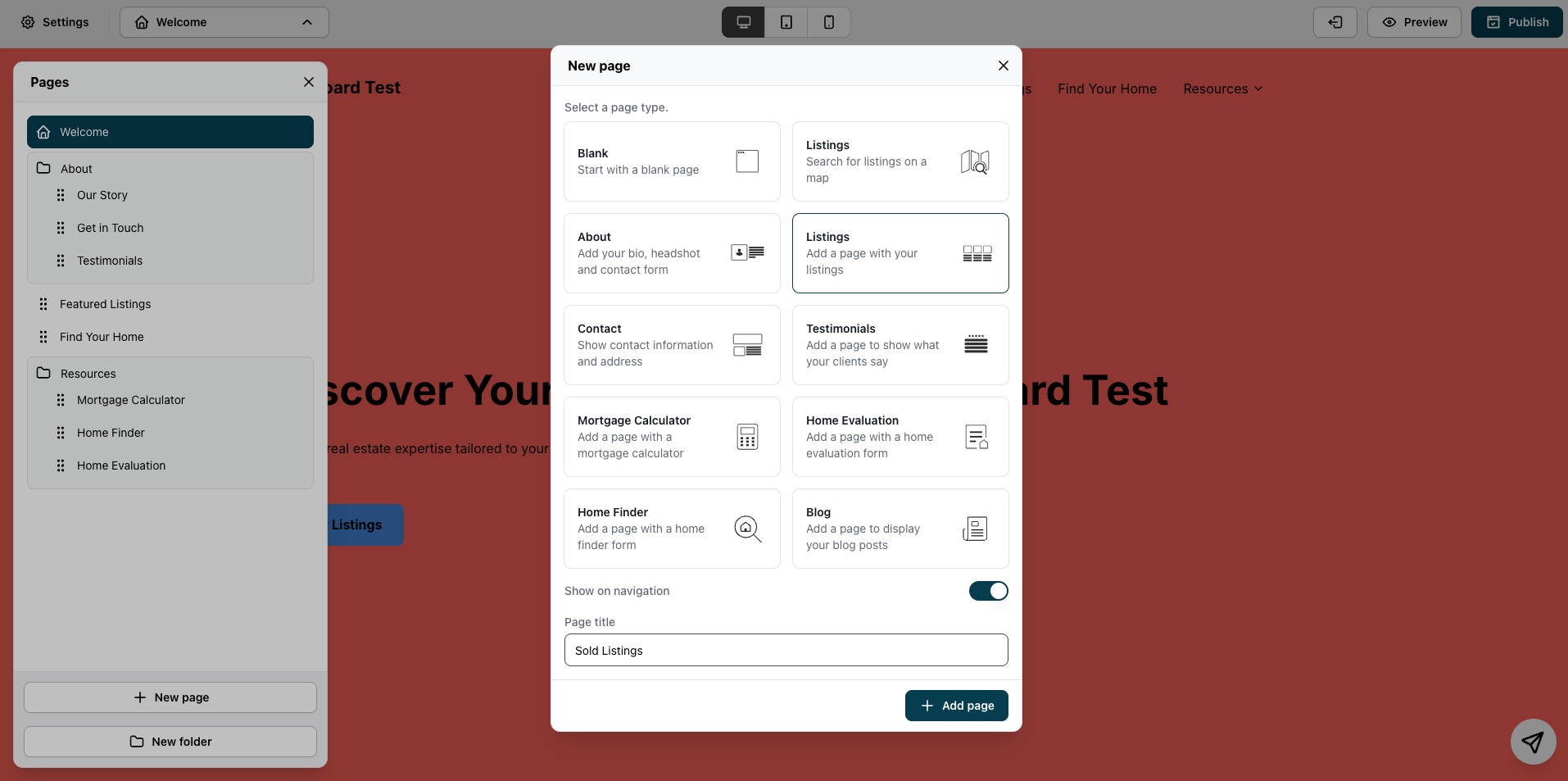
In the Page title field, replace the default text with Sold Listings. Leave Show on navigation turned on if you want this page to appear in your site's main menu.
Click Add page to create it.
Filter the page to show only sold listings
Once the page is created, open its settings panel and go to the Content tab. Scroll to Filters and find Listings to display.
By default, both Active and Sold may be checked.
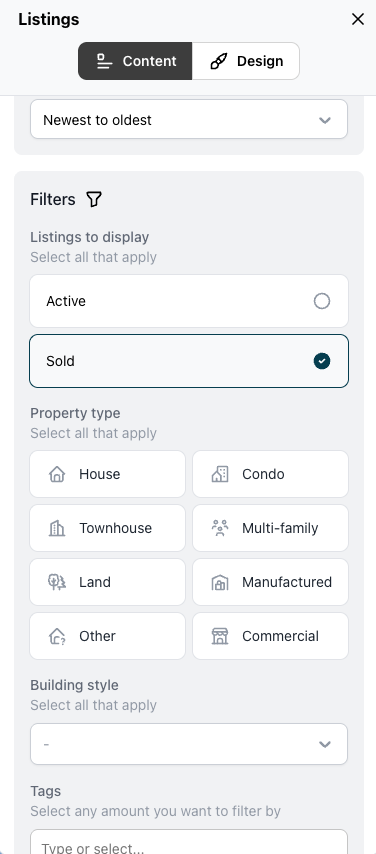
Uncheck Active, leaving only Sold selected.
Tip: Use the Property type, Building style, and Tags filters below to narrow the page further — for example, to show only sold houses in a specific neighborhood.
Click Save to apply your changes.
What happens next
Your Sold Listings page will now pull in any listings marked Sold in your Listings manager.
Note: If you see "No listings found" after saving, it means there are currently no listings marked as Sold on your account — not that the page is set up incorrectly. Once you mark listings as Sold, they'll appear here automatically.

When you're ready to make the page visible to site visitors, click Publish.