Changing your Favicon
Last updated: June 19, 2026
Your favicon is the small icon that appears in browser tabs, bookmarks, and on mobile home screens when someone saves your site. This article explains how to upload or replace it.
How to Update Your Favicon
Open Settings — Click Settings in the top-left corner of the Avenue website editor.

Click Styles — Select Styles from the dropdown menu.
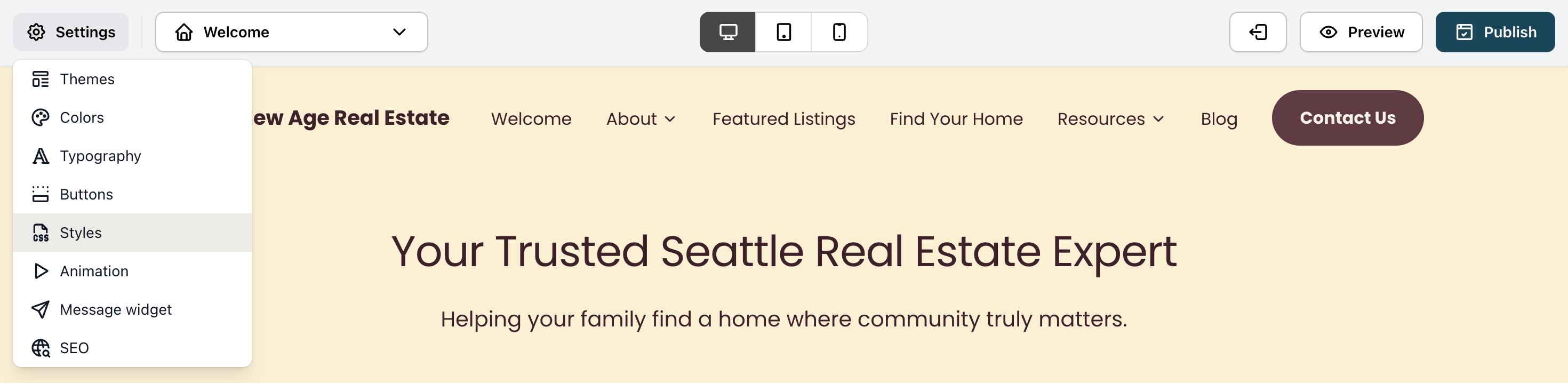
Scroll to the Favicon section — In the Styles panel, scroll down past the Rounded corners toggle and Spacing options until you see the Favicon section.
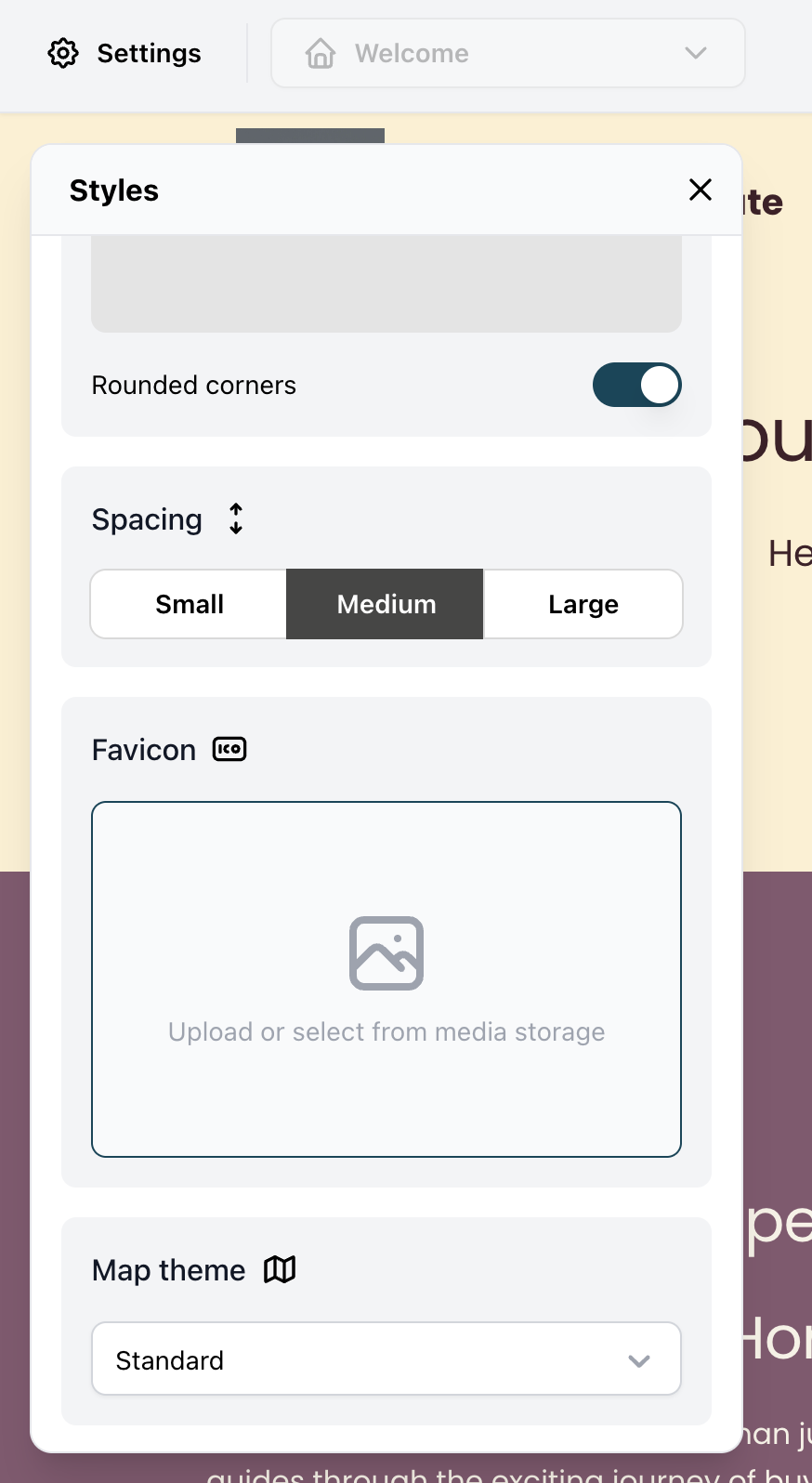
Upload your favicon — Click inside the favicon upload area and either upload a new image file or select one from your media storage.
Publish your site — Click Publish in the top-right corner to make the change live.
Tip: Use a square image for best results — ideally 32×32 px or 64×64 px. PNG files with a transparent background work well across browsers and devices.
It may take a few minutes for the new favicon to appear in your browser tab after publishing. Try a hard refresh (Cmd+Shift+R on Mac, Ctrl+Shift+R on Windows) if you don't see the update right away.
Once published, your favicon will appear in browser tabs and bookmarks for anyone visiting your site.